





Choose additional country / region / language Milwaukee Tool websites
Select Other SiteChoisissez des sites Web supplémentaires de pays / région / langue pour Milwaukee Tool
Sélectionnez un Autre SiteElija sitios web adicionales de Milwaukee Tool por país / región / idioma
Seleccione Otro Sitio
Support
Learn MorePipeline Inspection Tools - Support
Product support for the MILWAUKEE™ Modular Pipeline Inspection System. Select a product below to keep up to date with the latest feature through firmware downloads, and supporting information.
.
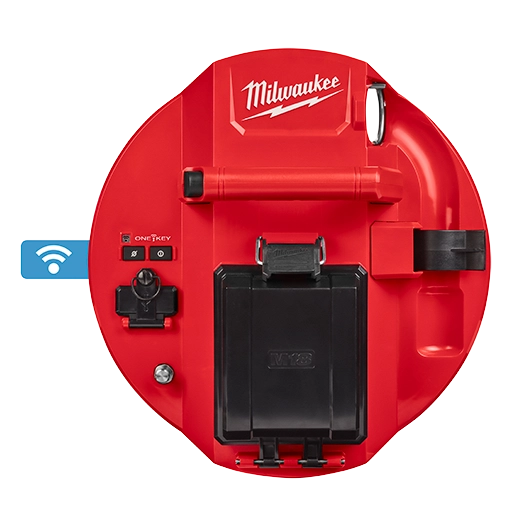
M18™ 500 GB Control Hub
2970-20, 2973-22, 2974-22, 2975-22, 2976-22
Version 1.4.0.3 – 06/01/2022
Version 1.3.0.2 – 01/01/2022
Version 1.2.0.0 – 09/01/2021
Version 1.1.0.0 – 03/01/2021
Version 1.0.6.68 – 12/01/2020
Version 1.0.5.26 – 10/01/2020
Version 1.0.1.62 – 04/01/2020
1. Download the latest version of the Milwaukee Pipeline Inspection Firmware for your M18™ 500GB Control Hub.
2. Unzip the file and transfer to a USB Thumb Drive.
3. Turn on both the M18™ 500GB CONTROL HUB and M18™ WIRELESS MONITOR or tablet running the Milwaukee® Pipeline Inspection App.
4. Check that the WIRELESS MONITOR or tablet running the Milwaukee® Pipeline Inspection App is connected to the CONTROL HUB by WI-FI. If it is not connected, you will need to connect it.
5. Insert the Thumb Drive into the Control Hub’s USB-A port.
6. Turn the navigation dial to SETTINGS and select SYSTEM UPDATE.
7. Select Control Hub.
8. Select the .bin file to begin the update.
Note: Systems with Firmware version 1.4.0.3 installed can utilize Over the Air updates, by connecting wirelessly through the Milwaukee Pipeline Inspection mobile app.
1. Download the FREE Milwaukee Pipeline Inspection app from the Apple App Store, or Google Play store.
2. Insert M18™ Battery into the M18™ 500GB Control Hub.
3. Power on M18™ 500GB Control Hub.
4. Open the settings menus on your mobile device and go to Wi-Fi settings.
5. Select Wi-Fi network “MTCAM_last 9 digits of Control Hub serial number” .
6. Enter password: 29702000 and connect to the Control Hub’s Wi-Fi network.
7. Launch the Milwaukee® Pipeline Inspection App.
8. Accept location, microphone, and Bluetooth prompts.
9. Accept prompt to Join Wi-Fi network.
10. Allow to connect to the devices on your local internet.
11. Wait up to 30 seconds for an image to appear.
12. If additional support is needed, call 1-800-SAWDUST
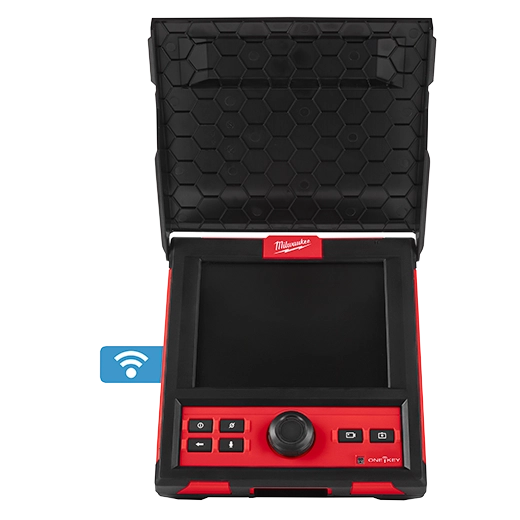
M18™ Wireless Monitor (Tool Only)
2971-20
Version 1.4.0.3 – 06/01/2022
Version 1.3.0.2 – 01/01/2022
Version 1.2.0.0 – 09/01/2021
Version 1.1.0.0 – 03/01/2021
Version 1.0.6.68 – 12/01/2020
Version 1.0.5.26 – 10/01/2020
Version 1.0.1.62 – 04/01/2020
1. Download the latest version of the Milwaukee Pipeline Inspection Firmware for your M18™ Wireless Monitor.
2. Unzip the file and transfer to a USB Thumb Drive.
3. Turn on both the M18™ 500GB CONTROL HUB and M18™ WIRELESS MONITOR or tablet running the Milwaukee® Pipeline Inspection App.
4. Check that the WIRELESS MONITOR or tablet running the Milwaukee® Pipeline Inspection App is connected to the CONTROL HUB by WI-FI. If it is not connected, you will need to connect it.
5. Insert the Thumb Drive into the Control Hub’s USB-A port.
6. Turn the navigation dial to SETTINGS and select SYSTEM UPDATE.
7. Select Wireless Monitor.
8. Select the .bin file to begin the update.
Note: Systems with Firmware version 1.4.0.3 installed can utilize Over the Air updates, by connecting wirelessly through the Milwaukee Pipeline Inspection mobile app.
MILWAUKEE PIPELINE INSPECTION APP
1. Download the FREE Milwaukee Pipeline Inspection app from the Apple App Store, or Google Play store.
2. Insert M18™ Battery into the M18™ 500GB Control Hub.
3. Power on M18™ 500GB Control Hub.
4. Open the settings menus on your mobile device and go to Wi-Fi settings.
5. Select Wi-Fi network “MTCAM_last 9 digits of Control Hub serial number” .
6. Enter password: 29702000 and connect to the Control Hub’s Wi-Fi network.
7. Launch the Milwaukee® Pipeline Inspection App.
8. Accept location, microphone, and Bluetooth prompts.
9. Accept prompt to Join Wi-Fi network.
10. Allow to connect to the devices on your local internet.
11. Wait up to 30 seconds for an image to appear.
12. If additional support is needed, call 1-800-SAWDUST
- I am unable to connect to the Control Hub with a mobile device.
- Follow the step-by step guide to connect to the Control Hub’s network
- If you are still unable to connect:
- Open the settings menus on your mobile device and scroll to the Milwaukee® Pipeline inspection app.
- Select the app and verify that permissions are allowed.
- If Cellular data for the app, toggle cellular data to OFF.
- Relaunch the App and wait up to 30 seconds for an image to appear.
MILWAUKEE PIPELINE INSPECTION DESKTOP REPORTING SOFTWARE
Version 1.4.0.3 - 06/01/2022
Get Connected. Receive FREE Decal!
Claim your free Milwaukee decal by joining HEAVY DUTY NEWS™, the trusted source of new Milwaukee solutions, events, contests and more.